
Schedules and sharing
A schedule makes a report about one crop every day or every week, at the time you choose. You can share it with people in your own company, who then read its reports, the ones already made and the new ones.
Create a schedule
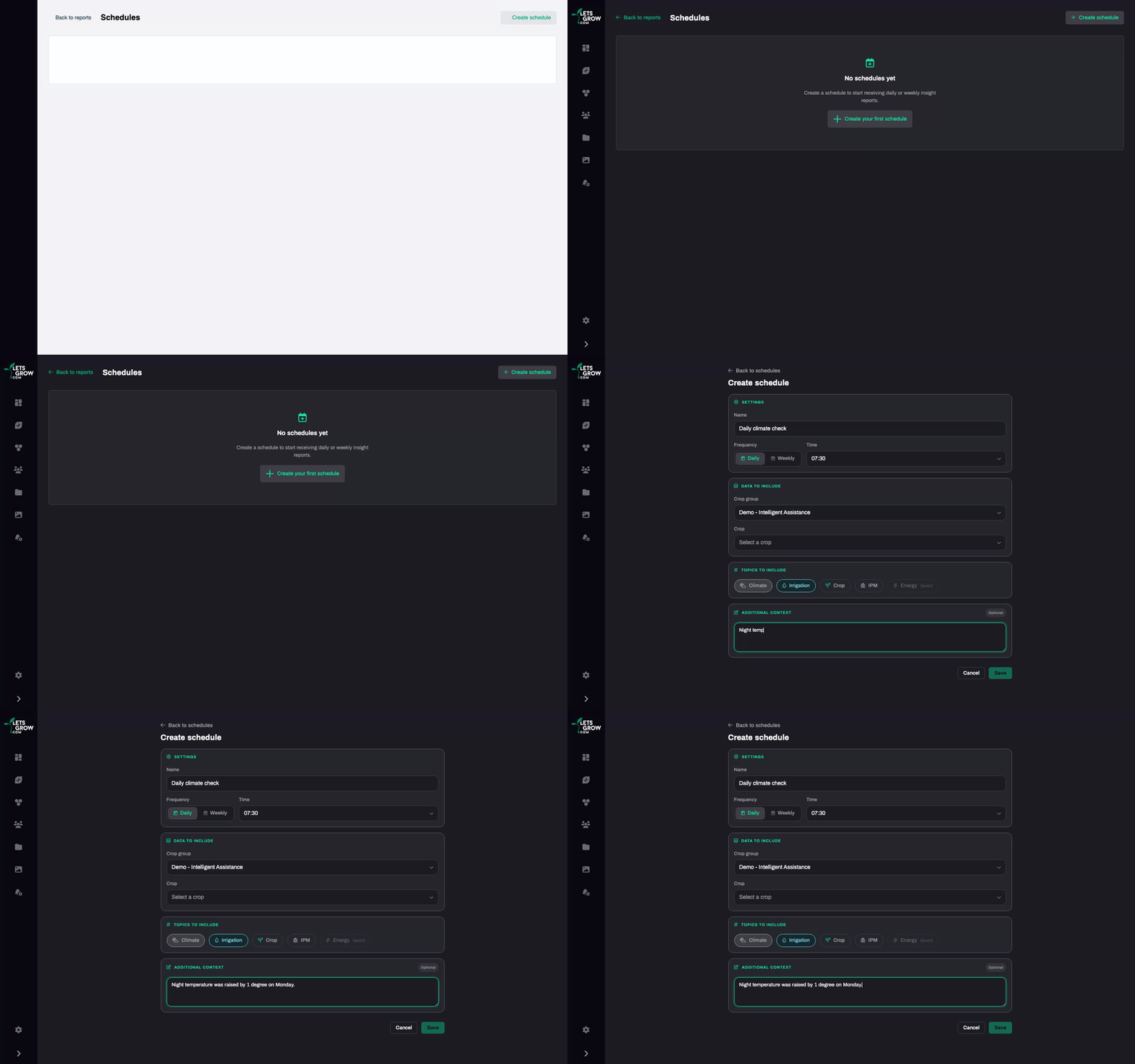
Section titled “Create a schedule”- Open Reports, click Manage schedules and then Create schedule.
- Fill in Name.
- Choose the Frequency: Daily or Weekly. For a weekly schedule, also choose the Day of week.
- Choose the Time. The schedule runs at that time in the time zone of your browser.
- Choose the Crop group and the Crop. A schedule covers one crop.
- Pick at least one topic. See What’s in a report.
- Optional: under Additional context, write what the report should keep in mind. Keep it short.
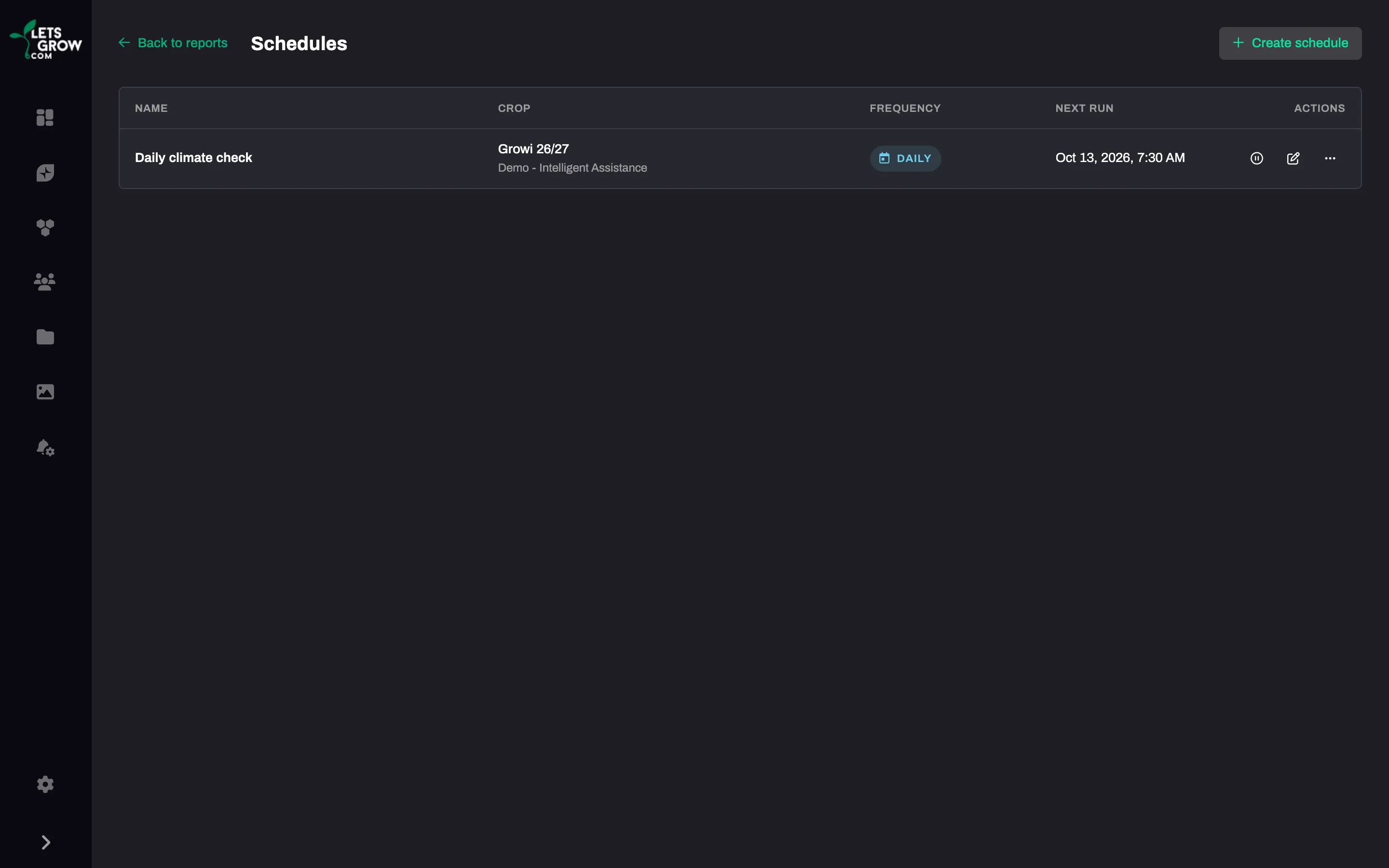
- Click Save. The schedule is in the list Schedules with its Next run.
The report is written in the language your LetsGrow screen has when you save. It also uses your custom instructions and your crop memory for that crop. See Custom instructions and crop memory.
Change, pause or run a schedule
Section titled “Change, pause or run a schedule”- Open Reports and click Manage schedules.
- Click the schedule to open Edit schedule. Every field can be changed.
- Use the switch to pause or resume the schedule. A resumed schedule does not catch up on missed runs.
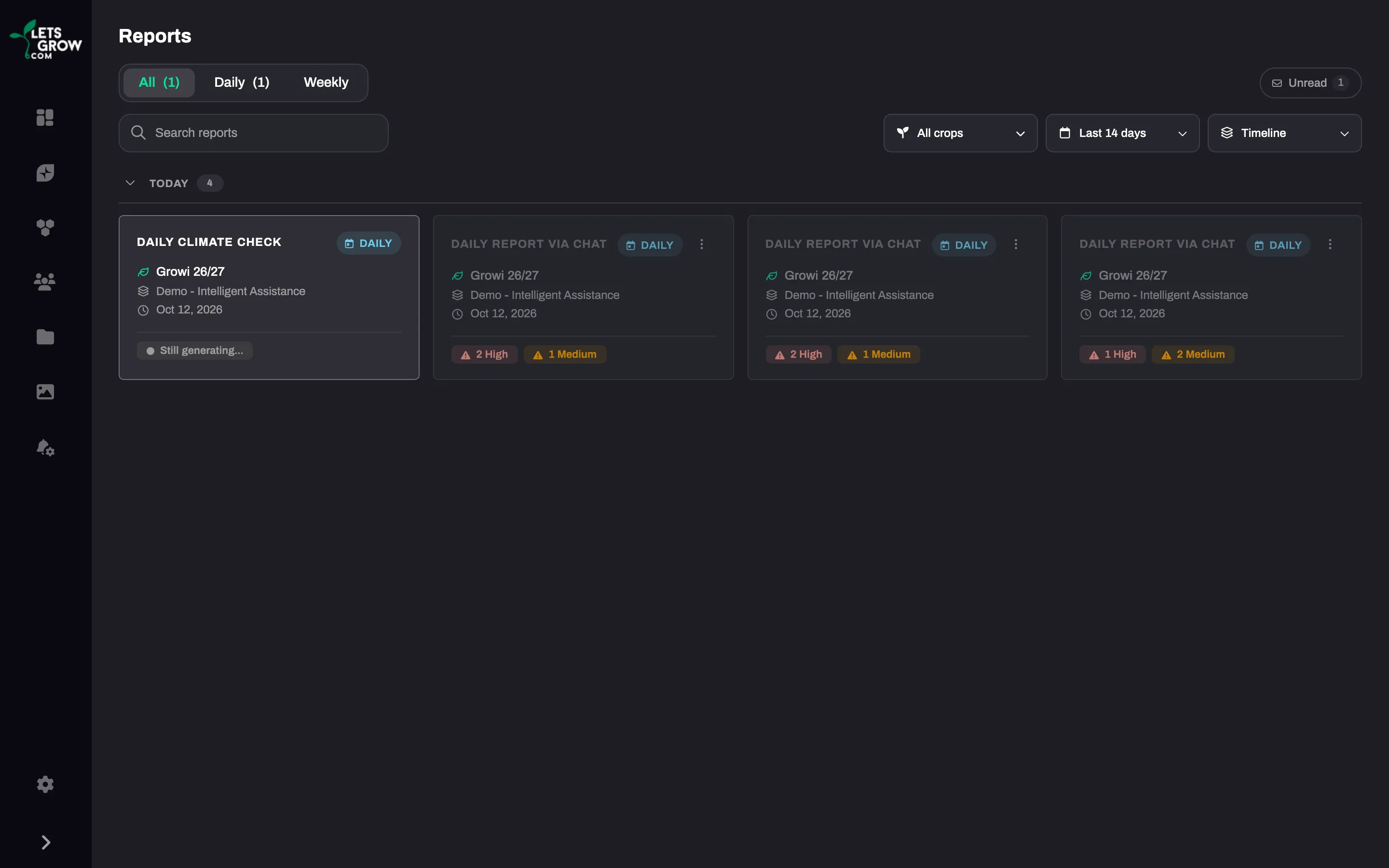
- Open the menu of the schedule and click Run now for a report about yesterday. The schedule shows Triggered, and the report is in your Reports list with “Still generating…” while it is being made. The menu also has Duplicate, to copy the schedule to another crop, and Delete. Reports already made stay.
Share a schedule
Section titled “Share a schedule”- Open the menu of the schedule and click Share.
- In Share schedule, tick the people, or Select everyone in the company. Someone who joins the company later is not added.
- Click Save.
The schedule now shows “Shared” with the number of people. To take access away, click it, remove the tick and click Save.
The receiver finds the reports in their own Reports list and the schedule under Manage schedules, tab Shared with me. They can open a report, download the PDF and ask Growi about it, but cannot change or run the schedule. They leave with Unsubscribe. Pausing a shared schedule stops the reports for everyone.
Every run, Run now included, counts towards the usage of the owner. See Plans and usage limits.
Troubleshooting
Section titled “Troubleshooting”- The schedule shows “Paused” and you did not pause it. A schedule pauses after three failed runs in a row and does not resume by itself. A run counts as failed only after its retries failed too. See A report is missing, late or incomplete.
- There is no Share in the menu. Sharing needs an account that is linked to a company.