
Your first question
Open Intelligent Assistance, type a question and pick your crop on the card Growi shows. The answer comes in the chat, with the number in the text and usually a chart.
- In the LetsGrow main menu, click Intelligent Assistance. It sits directly below Dashboards. The first time, a dialog Before you continue explains that the answers are AI-generated. Tick I understand and agree. and click Confirm.
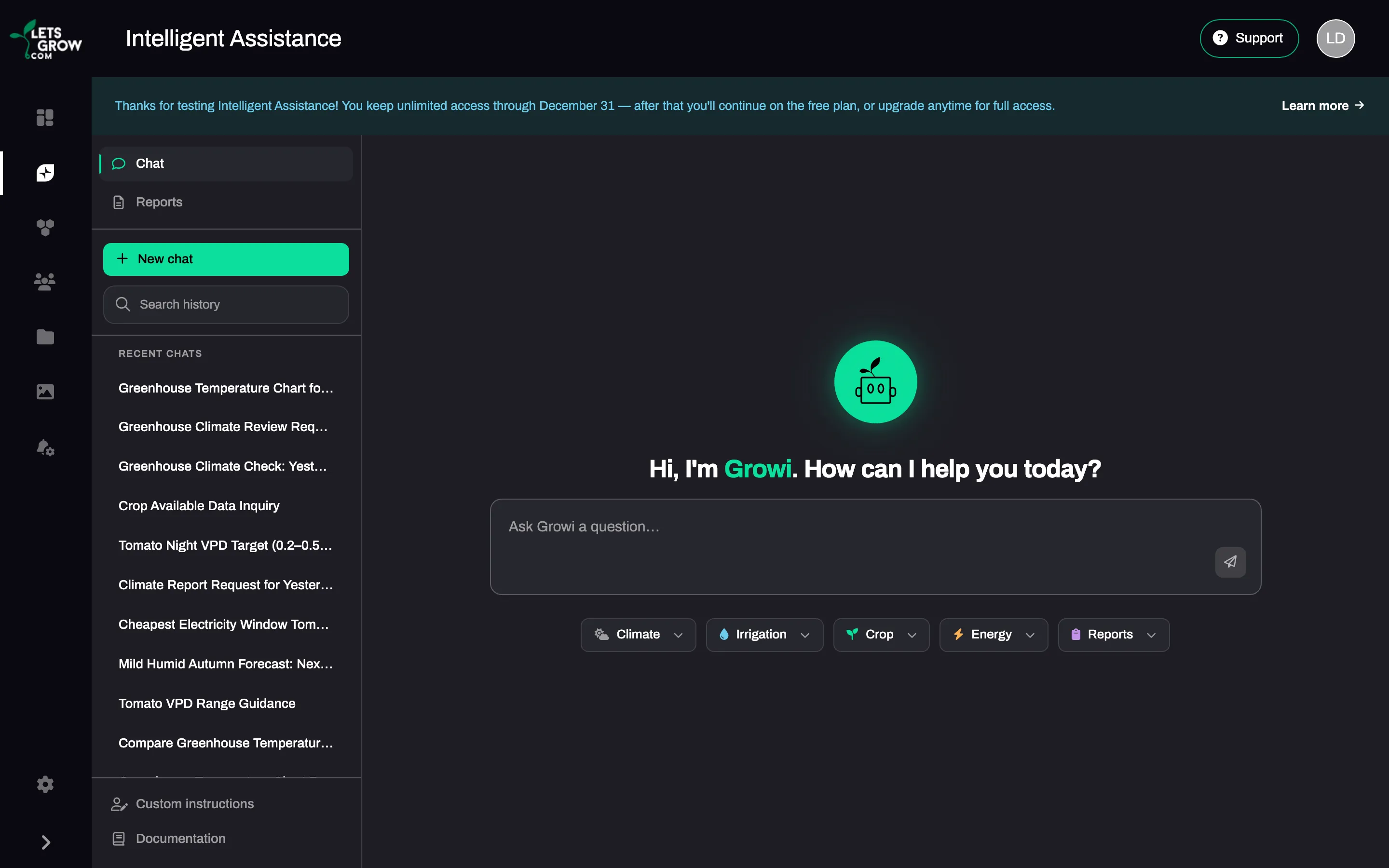
- On the Chat tab, click New chat. You see “Hi, I’m Growi. How can I help you today?”, the input field and a row of topic chips.
- Type a question in your own language, for example “What was the temperature yesterday?”, and click Send. Or click a chip such as Climate and click one of its four example questions. That sends it at once.
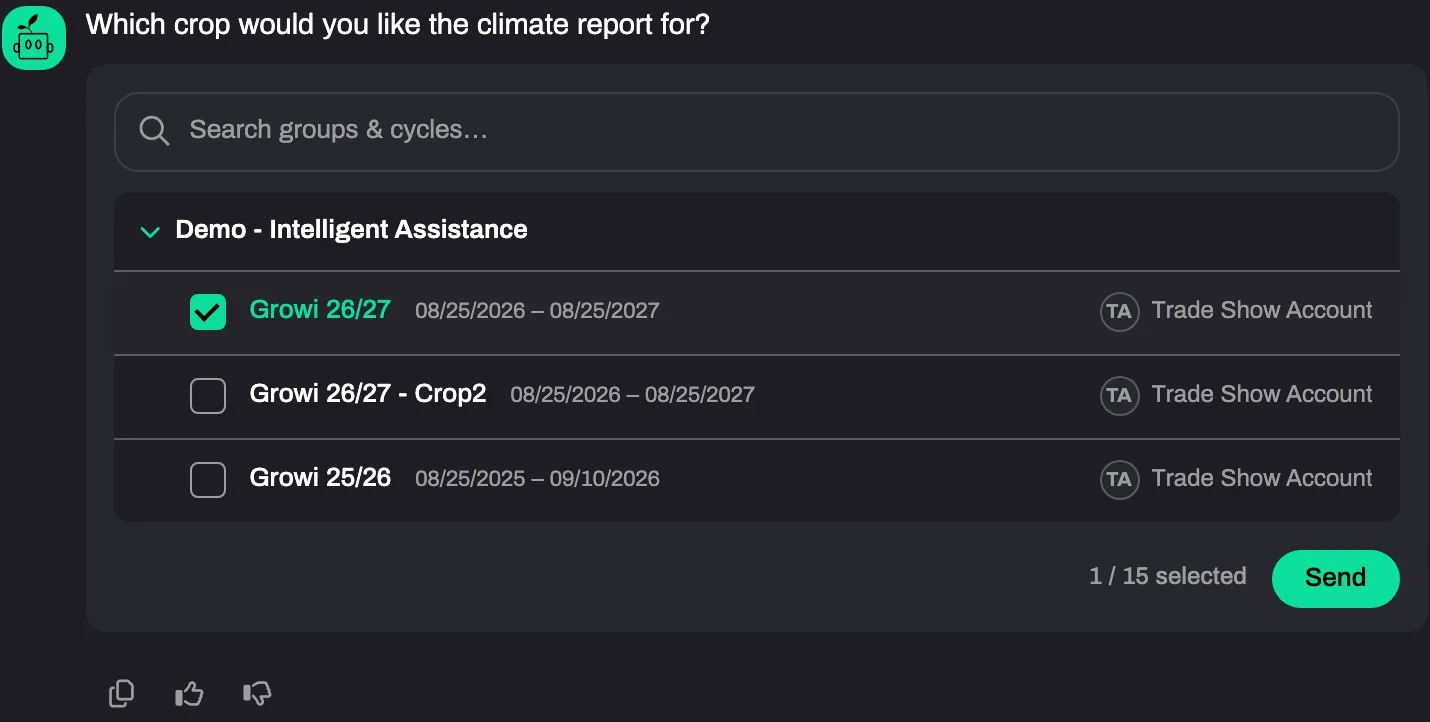
- On the crop card, open your crop group, tick your crop and click Send. See Choosing a crop.
- Read the answer. It names its source, for example “Based on your data”.
- Ask a follow-up. Clicking a suggestion under the answer puts it in the input field. It is sent when you click Send.
Expected result
Section titled “Expected result”A question about one value gets one or two sentences with the key number in bold. Growi adds a line chart when it read enough values to draw one. See How Growi shows an answer.
The crop stays for the rest of the conversation. The period does not: name it again in a follow-up, or Growi takes the last 24 hours.
The conversation is saved in your history. The three dots next to its title hold Pin chat, Rename, Select and Delete.
Troubleshooting
Section titled “Troubleshooting”- Intelligent Assistance is not in the menu. The item only shows when your user has the chat feature.
- An error bar shows instead of an answer. Click Try again.