
Finding and reading a report
Every report is on the Reports page, next to Chat in Intelligent Assistance. An unread report has a green dot before its name. The page starts with the last 14 days, so an older report stays hidden until you widen the period.
Find the report
Section titled “Find the report”- Open Reports.
- Look for the green dot. A report from a schedule starts unread, a report you asked for in chat starts as read.
- Narrow the list with the tabs All, Daily and Weekly, the filter Unread, Search reports, or the crop filter All crops.
- For a report older than two weeks, change Last 14 days to Last 30 days or All time.
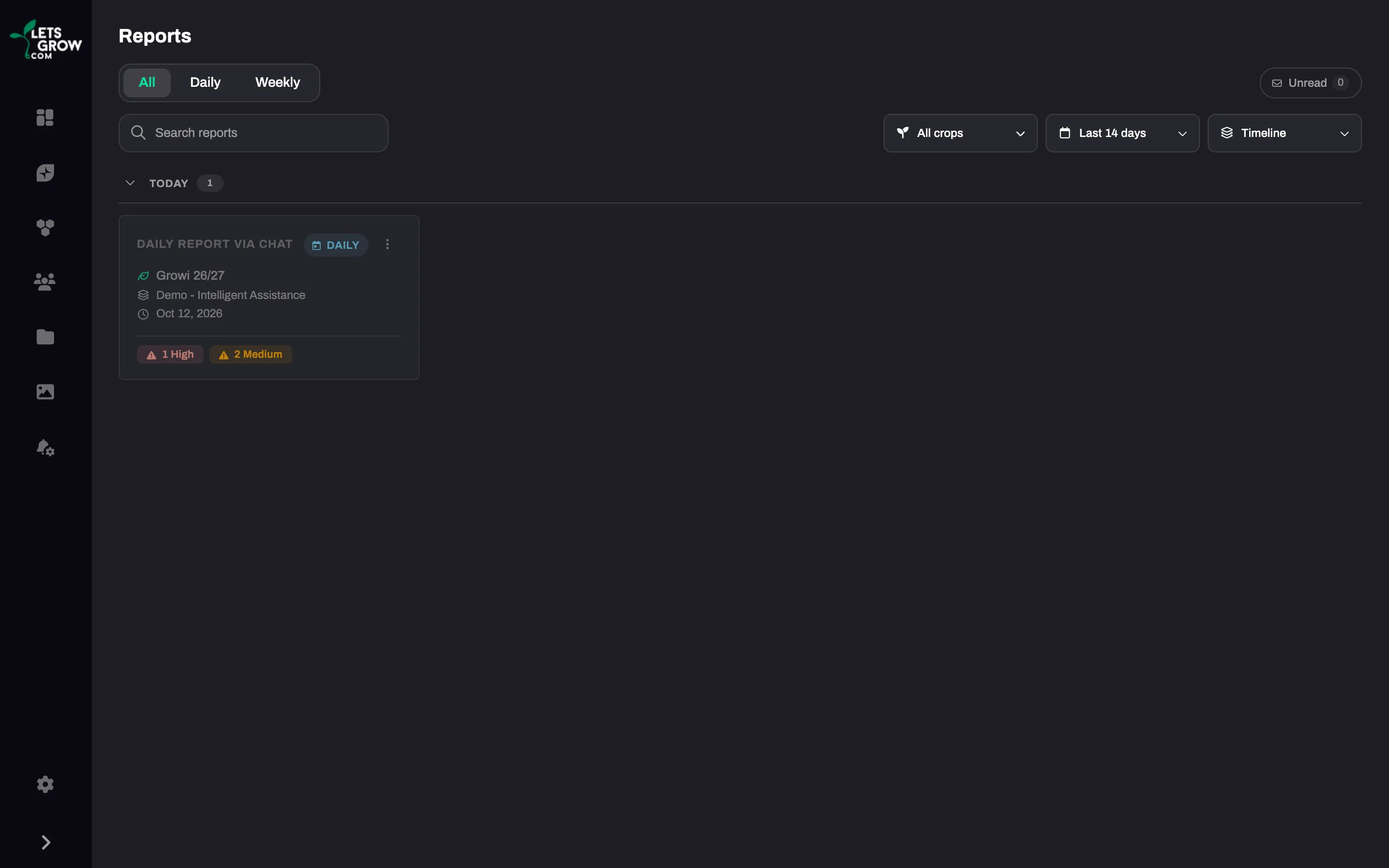
The grouping Attention has three sections: Needs attention (a critical or high point), Review (only medium points) and On target (no points). The date on a card is the day the report was made, not the day it covers.
Read a point
Section titled “Read a point”- Click the report. It is now marked as read.
- Read the points from the top. Critical comes first. See What’s in a report.
- Click Show analysis under a point. You see the Affected period, the Hypothesis and the Observations. One point is open at a time.
- Click View in graph. A graph opens in a new browser tab with the sensors of the point, over the report period and the 7 days (daily) or 4 weeks (weekly) before it. A point without sensors has no View in graph button.
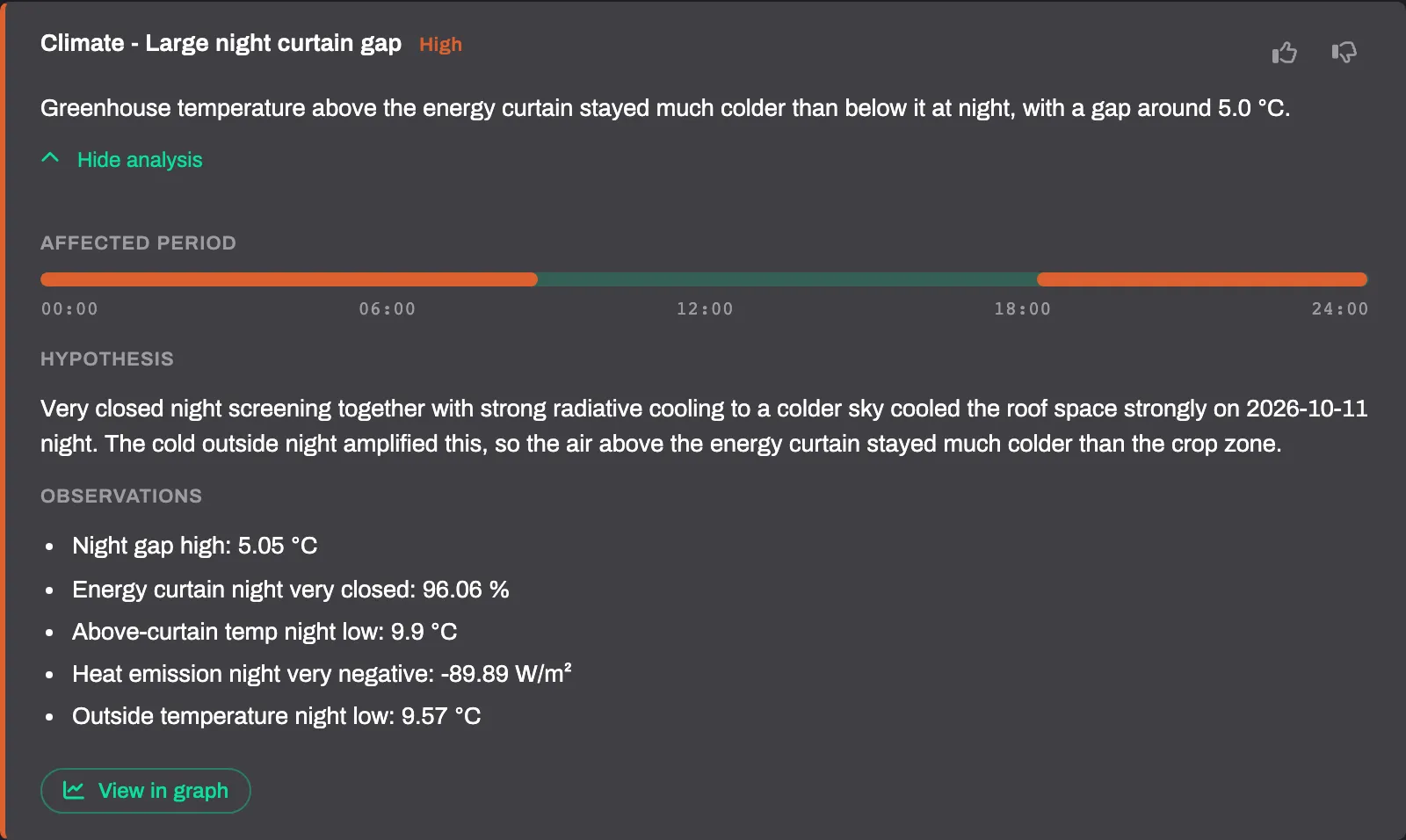
You can rate a point once, with thumbs up or down.
Continue in chat
Section titled “Continue in chat”- Click Ask Growi at the top of the report. A chat panel opens next to the report.
- Type your question in Ask a question about this report…. Growi has the report and takes the crop from it.
- Click Open in chat to continue the same conversation on the chat page, with the crop of the report selected. The panel shows text only. Charts and cards appear on the chat page. The conversation keeps the report: a later question still refers to it, also after you switch crop.
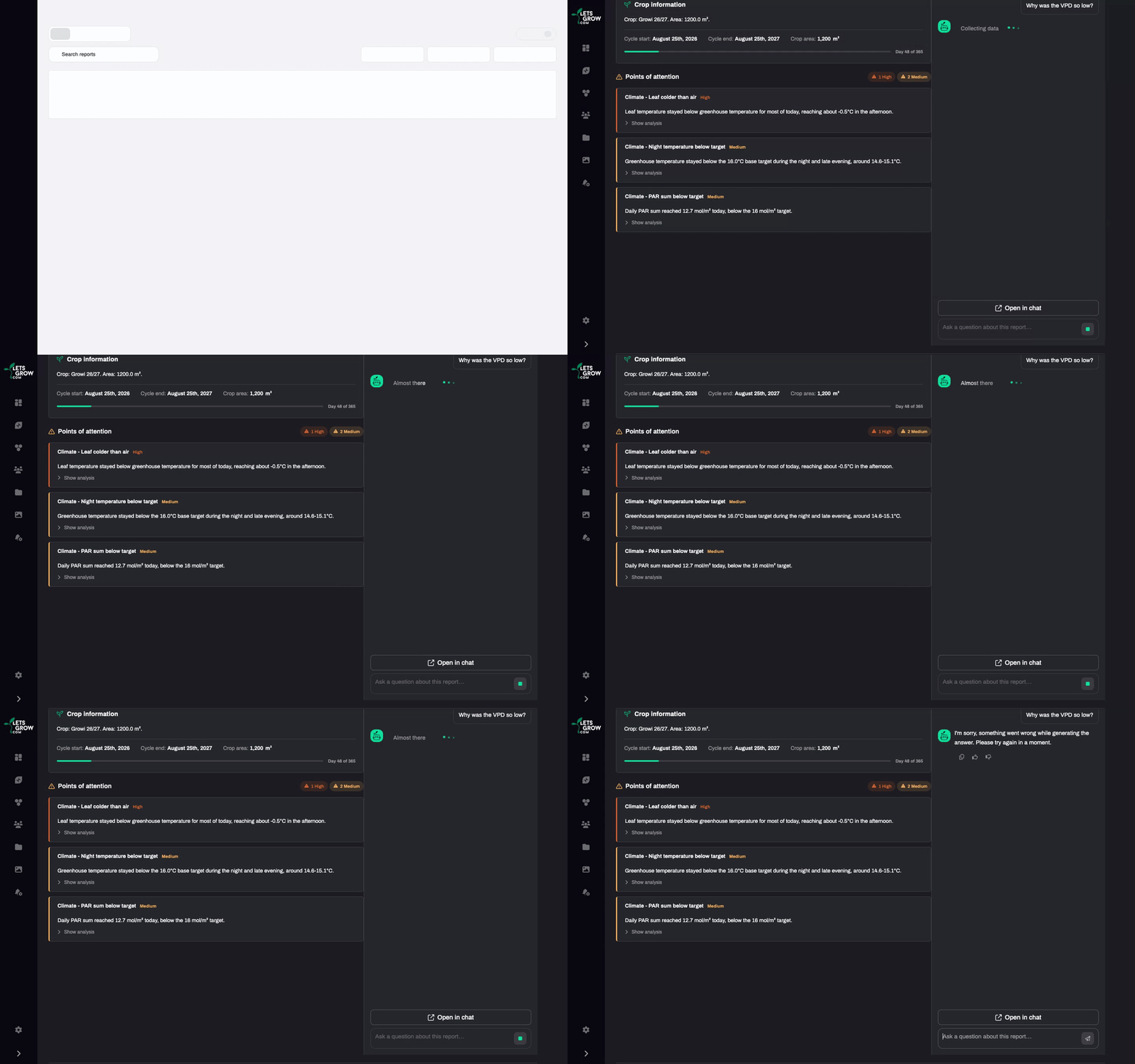
Every question in the panel counts as a chat question. See Plans and usage limits.
Download or delete
Section titled “Download or delete”- Open the menu (three dots) on the card or inside the report.
- Click Download PDF, or Delete report. The PDF is in the language of the report.
- For a delete, confirm with Delete. It is permanent.
Troubleshooting
Section titled “Troubleshooting”- The report is not in the list. Widen the period filter. If the page says “No reports match your filters.”, click Clear all filters.
- Growi answers in general terms and does not refer to the report. Growi only loads a completed report into the conversation.